Netway Networks
- Speed up a computer
- CrowdStrike Alerts
- Setting up a New Teams Phone User
- Setting up Access4 Phone Extension
- General Offboarding
- Useful Shit
- Mailbox Full
- New Device Setup
Speed up a computer
clean temp via powershell
|
$profiles = Get-ChildItem 'C:\Users' | Where-Object {
foreach ($profile in $profiles) { |
run perfmon /rel
run perfmon /report
run cleanmgr for disk cleanup
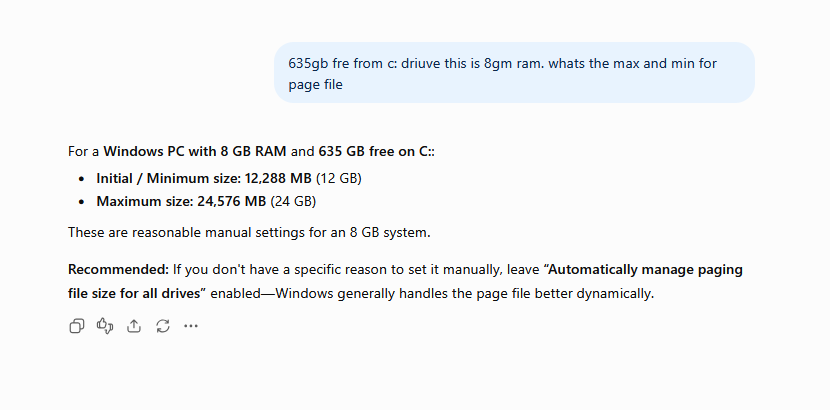
sysdm.cpl > advanced > setings > advanced > change virtual memory
CrowdStrike Alerts
Generic help for the platform and be able to respond to basic alerts
- We receive pings in Channel "Technical - All" for CrowdStrike Alerts.
- Look for Hostname
- Reply to the post to say you are investigating
- or ping Matt for the associated ticket to assign to me
*Escalate to Liam for assistance*
- Log into Crowdstrike
- Click on New Detections (default filters to new)
- Find the alert with the associated hostname
- Status > Edit Status > In Progress > Assign to Yourself > Update Status
- it will then move to the in progress filter
- Click on severity to pop out more information
- click on network contain if it is a threat to other machines
- once resolved click edit status, set the tag, and a comment, change status to closed, and update
- If true positive, escalate and advise the customer
- do not create any exclusions, escalate to Liam if you believe it is recurring
Setting up a New Teams Phone User
Log into https://admin.microsoft.com/AdminPortal/Home#/homepage
- Users > Active Users > Select the User
- Licenses & Apps > Ensure they have "Microsoft Teams Phone Standard" Ticked
- Account > Manage Groups > SASBOSS UCaaS Group
Log into https://www.sasboss.com.au/
Austunnel example:
- Customers > All Customers > Select the User
- Teams Users > Create Service > Select main group > "MS Teams User" Type > Submit
- Provisioning Process > Automated > Next
- Tick both authentication boxes > Next
- User should appear in this list if given both previous (group + license)
- Select an appropriate new service (correct country code etc.)
- extension will fill automatically
- Service Pack "Microsoft Teams Enhanced User"
- Next
- Hybrid Devices leave as default > Finish
- Allow replication time, email will be received once provisioning is complete
Momentum software solutions example: (Admin Centre license/group steps are the same)
- Customers > All Customers > Select the User
- SIP Channels > Select the appropriate channel under Service Ref ID
- MS Teams Settings > Manage Channel Teams Users
- Scroll to the bottom for provisioning process
- Select Automated and untick unnecessary, and configure phone details.
Return to Admin Centre
- Users > Manage Users > Select the User
- They should now have a phone number under the associated account
- If they are already logged into teams, get them to log out and log back in
Setting up Access4 Phone Extension
- Log into SASBOSS
- Customers > All Customers > Select the user
- End-points > Select an extension number that is not in use
- Click on Create Service > main, type = endpoint with no DID number (for extension only)
- Enter the number of extensions to be added (1), > activate extension numbers
- User ID = username and domain makes up their email address
- Service Pack = Executive User
- Add-on = Soft Phone with CISCO Webex (no extra charge)
- Timezone, and enter the extension chosen
- if they have a physical device, click Use Device Inventory (speak to Fred) to factory reset the phone and confirmed that the device is not in use.
- Enter the user's personal details and the same email address as entered above
- Tick deliver voicemail to this email address (by default)
- leave Phone No. (defaults to main office no.)
- mobile and fax can be left blank
- Click Create
- Generate a password, Note down the generated password to send to the user via secure one-time link
- for most clients, the service pack will just be executive user with soft phone and cisco webex.
- Press Submit
General Offboarding
- Check for company specific procedures in IT Glue
- Log into Microsoft 365 with the client's Netway admin credentials
- Admin > Show All > Exchange > Mailboxes
- Search for the user
- Convert to Shared Mailbox from Regular Type / User Mailbox
- Go back to Exchange Admin Centre > Users > Active Users
- Search for the user
- Check the sync status
- Synced from on premises means they have hybrid AD (one way sync), changes must be made on the ad server
- log on to the ad server
- disable the account
- wait 30 minutes or perform a manual AD sync via PowerShell as admin Start-ADSyncSyncCycle -PolicyType Delta (AD Sync may be installed on another server)
- verify sign in disabled in 365 tenant
- in cloud means 365 only
- Synced from on premises means they have hybrid AD (one way sync), changes must be made on the ad server
- Licenses and Apps > Remove licenses (unless inherited from a parent group)
- Log into Converge and deduct 1 license quantity
- Screenshots to cover yourself
- if required, disable VPN account via sonic wall
- log in
- device (top) > users (left) > Local users and groups
- Search for the user > Delete the user
We convert the mailbox to a shared mailbox before removing the license, otherwise the mailbox data will be delete
Useful Shit
User/Group Manager - lusrmgr.msc
Bypass OOBE - OOBE\BYPASSNRO
Access CMD in OOBE - Shift+F10
Change Hostname/Domain - sysdm.cpl
Add-MailboxFolderPermission -Identity "user@test.com:\Calendar" -User "target@viewer.com" -AccessRights Reviewer
Add printer as admin - rundll32 printui.dll,PrintUIEntry /il
Clear Spooler - del %systemroot%\System32\spool\printers\* /Q
Force Install Windows Update CMD - wuauclt.exe /updatenow
INSTALL OFFICE NO ACCOUNT - Download office deployment tool from MS then use CMD to run: setup.exe /configure configuration-Office365-x64.xml
ADSync: Start-ADSyncSyncCycle -PolicyType Delta
EZ passwords: https://www.dinopass.com/
OneDrive Site User ID Mismatch - https://learn.microsoft.com/en-us/answers/questions/908524/onedrive-site-user-id-mismatch
Debloat Win10 (Powershell): iwr -useb https://git.io/debloat|iex
Force Win10 Pro activate (Disconnect internet):
VK7JG-NPHTM-C97JM-9MPGT-3V66T
Ineo Printer Password: 12345678
Technical chat email: 92ebc27a.pnors.com@apac.teams.ms
Add printer as admin: rundll32 printui.dll,PrintUIEntry /il
Unlock AD User via CMD: NET USER loginname /DOMAIN /ACTIVE:YES
Using AD to Add an Alias to an Office 365 Email Account: https://blog.netwrix.com/2017/02/02/using-ad-to-add-an-alias-to-an-office-three-six-five-email-acco…
chris.brackley@ideasanvil.com - manager of UK team
Assign tickets to Charlie, Cristian and Andrew by setting to assigned - p5 - no time & date
Sync DC's - Repadmin /syncall /AdeP
Restart ScreenConnect (Powershell): Get-Service ScreenConnect* | Restart-Service
Renew IP in 1 command: ipconfig /release && ipconfig /renew
Clear up WinSXS: CMD ADMIN, then dism.exe /online /cleanup-image /startcomponentcleanup /resetbase (takes a long time)
Get HP Product Number via Powershell: Get-WmiObject win32_computersystem | Select-Object SystemSKUNumber
Clear saved credentials file explorer
Open an elevated command prompt and type in:
net use \\server\share /delete
then type in:
klist purge
Shutdown immediately: shutdown /s /t 0
Disable "Try the new Outlook" in Outlook GUI
reg add "HKCU\SOFTWARE\Microsoft\Office\16.0\Outlook\Options\General" /v HideNewOutlookToggle /t REG_DWORD /d 1 /f
Remove from pinned taskbar/start menu:
get-appxpackage *microsoft.OutlookForWindows* | remove-appxpackage
Download link to classic outlook: https://support.microsoft.com/en-au/office/you-can-t-open-classic-outlook-on-a-new-windows-pc-5c949…
connect to exchange online powershell: Connect-ExchangeOnline -UserPrincipalName EMAIL
command to install windows 11 via cmd: setupprep.exe /product server
Mailbox Full
- Log into Exchange 365
- Check Mailbox (35GB out of 100GB used)
- Check Archive Mailbox
- User has E3 plan, this enables upto 1.5TB of archival storage
- Use Powershell and the following commands to enable auto-expanding storage
- Enable-Mailbox shannan@harcher.com.au -AutoExpandingArchive
- Confirm feature is enabled using PS and Exchange portal
- Get-Mailbox shannan@harcher.com.au | FL AutoExpandingArchiveEnabled = True
- Email user
See #1666613
New Device Setup
Setup
Access CMD in OOBE: Shift+F10
start ms-cxh:localonly
Create a local account
Automate commands:
net user Netway lkFfIwCH0acBhN0z!UWIE1Y7 /add
net localgroup administrators Netway /add
C:\Windows\System32>net localgroup administrators Netway /add
There is no such global user or group: Netway.
More help is available by typing NET HELPMSG 3783.
net user
C:\Windows\System32>net user
User accounts for \\
-------------------------------------------------------------------------------
Administrator DefaultAccount defaultuser0
Guest Vaishali WDAGUtilityAccount
The command completed with one or more errors.
net user Netway /add
C:\Windows\System32>net user Netway /add
The command completed successfully.
net user Netway lkFfIwCH0acBhN0z!UWIE1Y7
C:\Windows\System32>net user Netway lkFfIwCH0acBhN0z!UWIE1Y7
The command completed successfully.
net localgroup administrators Netway /add
C:\Windows\System32>net localgroup administrators Netway /add
The command completed successfully.
C:\Windows\System32>net user Netway lkFfIwCH0acBhN0z!UWIE1Y7 /add
The password entered is longer than 14 characters. Computers
with Windows prior to Windows 2000 will not be able to use
this account. Do you want to continue this operation? (Y/N) [Y]:
Killed after 150000 milliseconds.